

Quick answer: To use an SVG in Cricut Design Space, download the file (from Makers Gonna Learn or any provider) and unzip it if it came in a .zip. Then open design.cricut.com, start a New Project, and click Upload in the bottom-left. Choose Upload Image, drag in your SVG, add a name or tags, and click Save — then select the image and click Make It to send it to your mat. Design Space accepts .png, .jpg, .gif, SVG, .dxf, and .bmp files, and it’s free to use. One tip: when a design has multiple layers, always choose the SVG over a PNG, because the SVG imports with its layers already separated and organized for you.
Whether you have been a member of Makers Gonna Learn for a while or just got a membership, this tutorial will help you learn How to Download SVG Files and Import Them into Cricut Design Space.
If you’re going to do this via iOS, you’ll need to add some apps to your device to use with Cricut.
What’s really great about this is that not only you’re going to be able to work with our zip files, but this tutorial could also help you on any other SVG provider from any other platforms.
How to Download SVG Files and Import into Cricut Design Space
We work with a lot of die-cutting files and make a lot of projects on our Cricut. If you do as well, our membership gives you access to hundreds of die-cutting files.
Every month you will receive new cut files as well as projects, video training, and access to our members-only Facebook group. It’s a lot of fun! Head on over and join the hundreds of members who have already joined.
Here’s our digital die-cutting dashboard, This is where you’re going to see all of our different collections. We have so many amazing collections that you’re going to love working with.

Right now, we’re going to scroll down to our Apparel Collection. Simply click it and as soon as you do, you’re going to see a pop up down in the bottom left-hand corner. If you’re on Google Chrome, you’re going to see it’s an apparel collection .zip file.
If you’d rather work on your iOS device, check out these blog posts: How to Download a Font for Cricut Design Space on your iPad or iPhone and How to Use SVGs with your iOS Device

You can also check your downloads folder to find the apparel collection .zip file.
Now, what we’re going to do is to unzip the file. To do that, click on it and it will unzip. If you’re on Mac it’s going to look a little different compared to a Windows computer. On Windows, you might not be able to see previews.

Let’s go ahead and open the collection. With our files, you get two options. You are able to work with PNG’s or SVG’s. If you are working with something that you know already has multiple layers, you will definitely want to work with the SVG. With it, we do all the work for you and when you import it, all those layers are organized.
If you’re working with a JPEG or PNG, you’re going to have to duplicate that and contour a few layers out. It can be really confusing, so always work with SVG for the most part – at least until you get more Cricut Design Space experience under your belt.
As you can see on my screen, since I’m using a Mac, I can see a preview of these files. Unfortunately on most Windows computers, you won’t find that but we do try to help you out by naming it so you have an idea of what the file is.

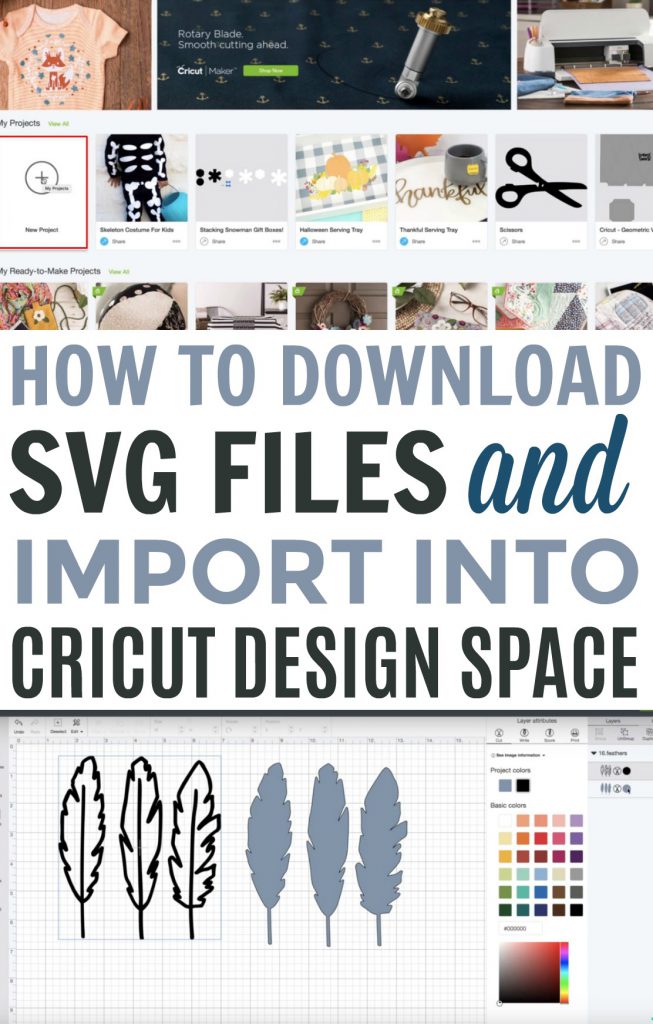
Now, we’ll go to Google Chrome and type in design.cricut.com. This is our landing page for Cricut design space. Next, we’re going to click on “New project”

Here you can see what we call the “canvas”, Go to the bottom left-hand corner and select “upload”.

Now we’re going to see that we’ve already uploaded images in the recently uploaded category. That’s where you’re going to see and reference your files if you’ve already uploaded them. But what we’re going to do is to click “upload image”. Now you have the option to drag and drop the file or browse.

Then it’s going to let you know what type of files can be uploaded to Cricut Design Space. Currently, you’re allowed to upload .png, .jpg, .gif, SVG, dxf or .bmp. I’ll be honest – I have no idea what the last two are.
Right now, I really want to work with our feathers! So we’re going to take these feathers and drop those in. Before you drop it, you’re going to see that it’s green. That means it’s good to go.
In the top of the left-hand corner, you can see a preview of your file. So what we’re going to do is you change the name or add any tags so that you can search for it easier. Once done, click save.

Here you can see the amazing high-quality SVG file that is going to be great for any type of your project. If you look in your layers panel, you can see that it has already organized the two layers.
This makes it SO easy for you! If you wanted to have a layer cut or drawn or anything like that, you can go through and manipulate these.

What I love about SVG files is that once you create them and import them. you can click “Make it” and it’s already prepared on your Cricut cutting mat. So imagine working with one of our files that are three to five layers. It is going to take care of all the work!
One question we are often asked is if we can upload the whole collection at once and the answer is NO, you cannot. You have to upload each image individually. This keeps the Cricut servers from getting bogged down with too many files at once.
Need more information on using your Cricut? We have an AMAZING Beginner’s Guide to Cricut here!
There’s no charge for using Cricut Design Space itself. You will only be charged if you are using Cricut fonts and cut files from Cricut Access. If you just want to use the files or images from our membership, you can definitely do that and it won’t cost you anything to use Design Space to do so.
It’s not difficult to download the SVG files that you want to use with your Cricut. Once you’ve gone through the steps for it, it will soon become second nature. You’ll be able to use whatever cut files you want in your die cutting machine and make all kinds of fun craft projects!
If you have any questions on importing files into Cricut Design Space, don’t forget to leave us a comment below. I cannot wait to see what you start creating with your membership!
Frequently Asked Questions
What file formats can you upload to Cricut Design Space?
Cricut Design Space accepts .png, .jpg, .gif, SVG, .dxf, and .bmp files. For designs with multiple layers, choose the SVG — it imports with all its layers already separated and organized.
Should I use the SVG or the PNG version of a cut file?
Use the SVG whenever a design has multiple layers. With an SVG, the layers come in already organized, so you can cut, draw, or manipulate each one. A PNG or JPEG has to be duplicated and contoured by hand, which is more confusing — especially while you’re still learning.
Can I upload a whole collection of files to Design Space at once?
No. You have to upload each image individually. Uploading one at a time keeps Cricut’s servers from getting bogged down by too many files at once.


